

Every modern browser offers to save your passwords for free – and for millions of people, that is the only password manager they use. But how safe are Chrome, Firefox, Safari, Edge and Brave at protecting your logins? In this guide we explain how each browser encrypts your passwords, where the real risks lie, and how likely a leak actually is – so you can decide whether your browser is enough or whether it is time to move to a dedicated password manager.
Quick Verdict


How Browser Password Managers Store Your Passwords
All browser password managers follow the same basic model:
- Local storage: saved logins are written to a file in your browser profile (for example a SQLite database in Chromium browsers or
logins.jsonin Firefox). - Encryption at rest: passwords are encrypted, usually with AES-256. The important question is where the encryption key is kept and what is needed to unlock it.
- Key protection: the key is protected by your operating system (Windows DPAPI, macOS Keychain, Linux keyring), by a password you set (Firefox Primary Password) or by dedicated hardware (Apple Secure Enclave).
- Sync: to use passwords on other devices, the browser uploads them to the vendor’s cloud. Sync is either end-to-end encrypted (only your devices hold the keys) or encrypted with keys the provider manages.
Comparison Table: Chrome vs Firefox vs Safari vs Edge vs Brave
| Feature | Chrome | Firefox | Apple Passwords | Edge | Brave |
|---|---|---|---|---|---|
| Our security rating | 4.1/5 | 4.2/5 | 4.6/5 | 4.0/5 | 3.9/5 |
| Local encryption | AES-256-GCM + DPAPI / App-Bound | AES-256 + optional Primary Password | AES-256-GCM + Secure Enclave | AES-256-GCM + DPAPI | AES-256-GCM + OS keystore |
| End-to-end encrypted sync | Optional (on-device encryption) | ✔ Yes | ✔ Yes | — | ✔ Yes |
| Extra unlock to view passwords | OS login (optional) | Primary Password / OS login | ✔ Face ID / Touch ID | OS login (optional) | OS login (optional) |
| Breach alerts | ✔ Password Checkup | ✔ Breach alerts | ✔ Security recommendations | ✔ Password Monitor | Limited |
| Passkeys | ✔ Synced | Via OS | ✔ Synced | ✔ | ✔ |
| Built-in 2FA codes | — | — | ✔ | — | — |
| Cross-platform | All | All | Apple + Windows | All | All |
Based on vendor documentation and publicly available security research as of October 2026. Ratings are VPNella’s editorial assessment.
Google Chrome (Google Password Manager)
🏆 Most Convenient Cross-Platform
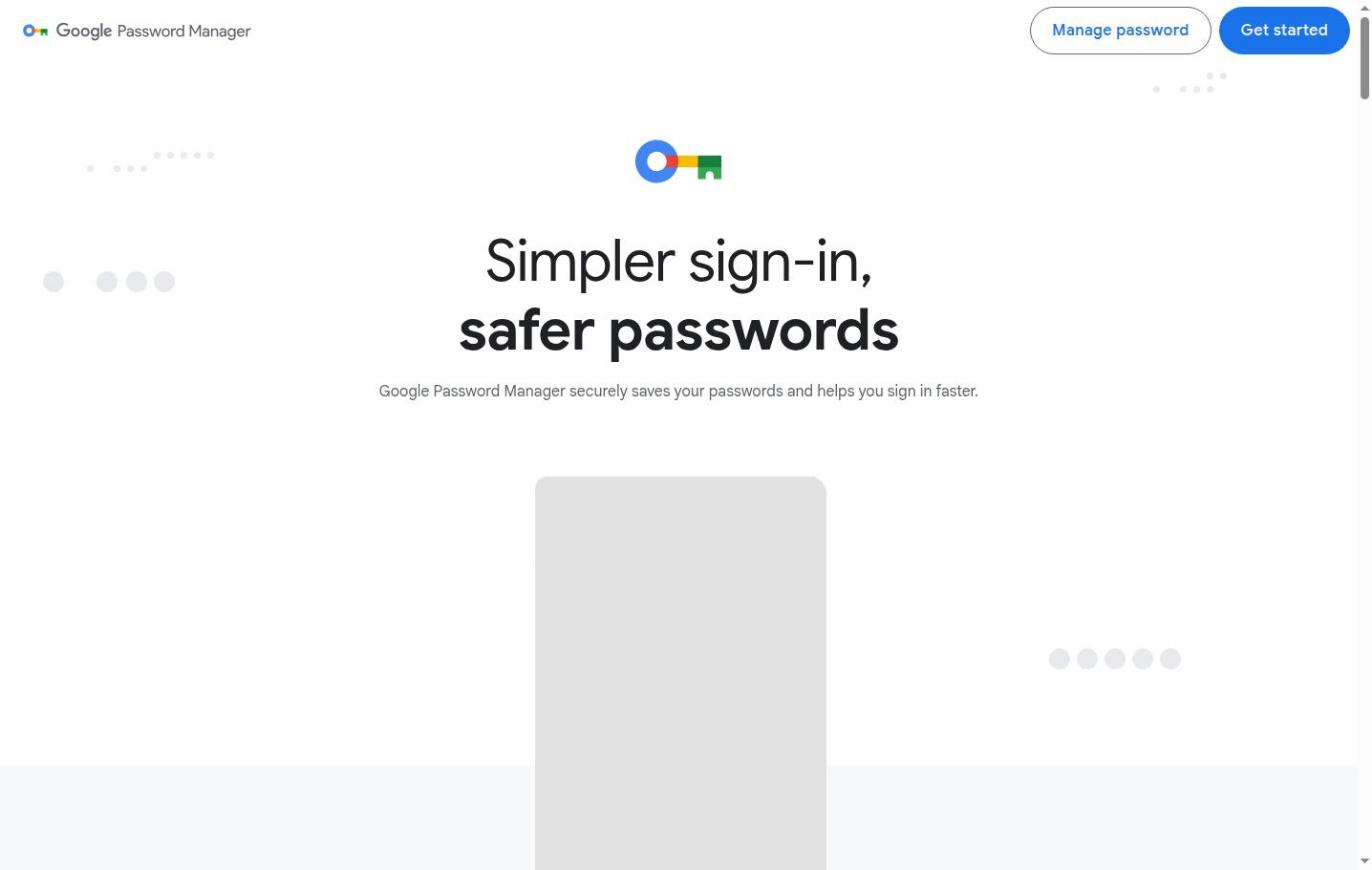
Google Password Manager is built into Chrome and Android, which makes it the most widely used password manager in the world. It saves passwords automatically, generates strong ones, syncs passkeys across devices and runs Password Checkup to flag compromised, reused and weak passwords.
How it is encrypted: on Windows, Chrome stores credentials in a local SQLite database encrypted with AES-256-GCM. The key is protected by the Windows Data Protection API (DPAPI), and since 2024 Chrome adds App-Bound Encryption, which ties the key to Chrome itself so that other programs running as the same user cannot simply ask Windows to decrypt it. On macOS the key lives in the system Keychain; on Linux it relies on GNOME Keyring or KWallet – and falls back to a much weaker scheme if no keyring is available.
Sync: by default, synced passwords are encrypted with keys Google manages, so the security of your vault depends heavily on the security of your Google account. You can enable on-device encryption so that only your devices hold the keys – we strongly recommend turning it on.
- ✔Zero setup – works out of the box
- ✔Excellent Android integration and passkey sync
- ✔Password Checkup breach alerts
- ✔Optional on-device (end-to-end) encryption
- ✖Default sync encryption uses Google-managed keys
- ✖Prime target for infostealer malware
- ✖Weak protection on Linux without a keyring
- ✖Ties your passwords to your Google account
Mozilla Firefox Password Manager
🏆 Best for Privacy-Focused Users
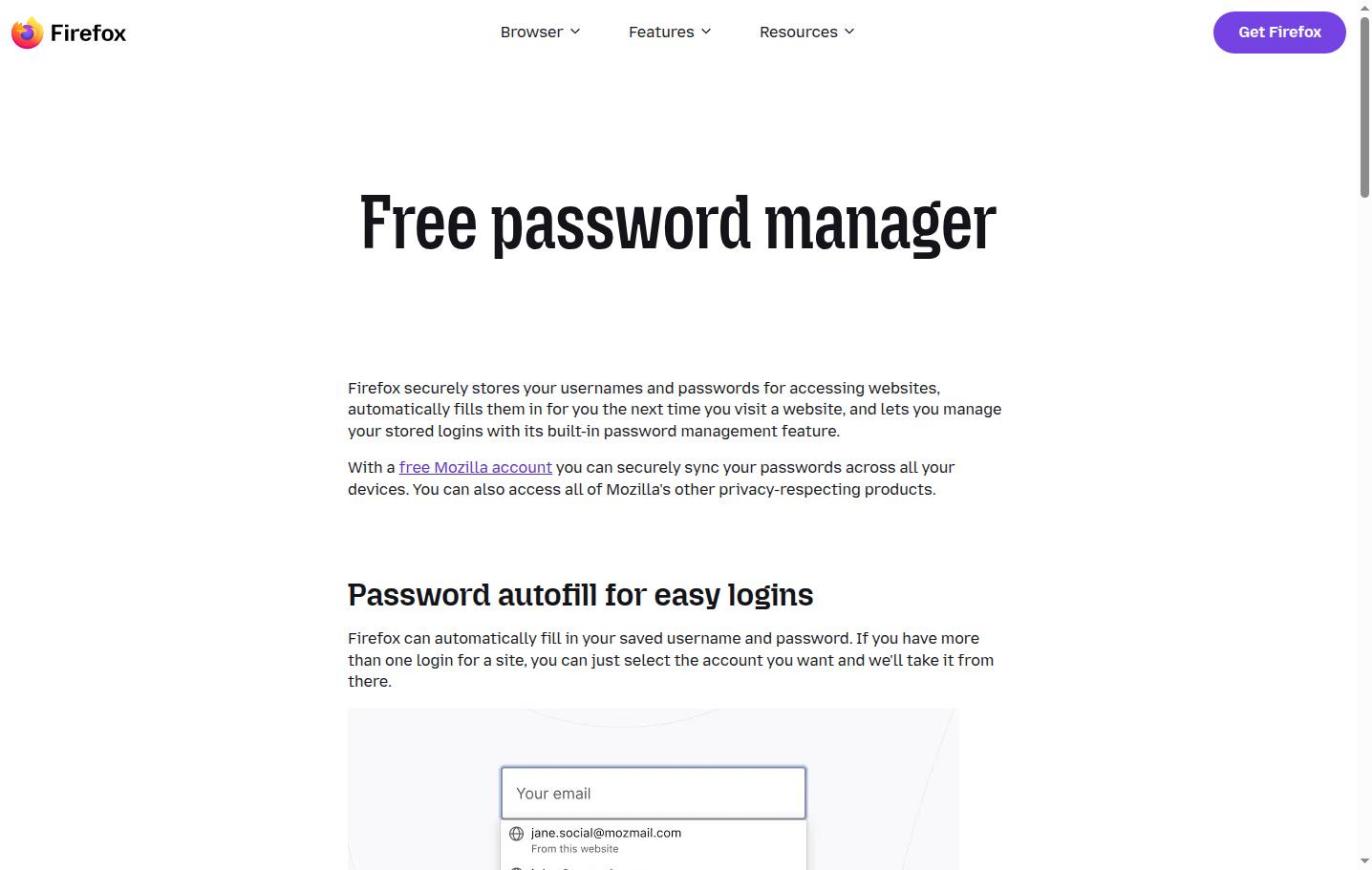
Firefox’s built-in password manager is the best choice among browsers if you care about privacy and want cloud sync without trusting the provider. Passwords are stored in a logins.json file encrypted with AES-256, with the encryption key kept in a separate key4.db database.
The crucial setting is the Primary Password (formerly Master Password). When it is enabled, the local key is itself encrypted with a key derived from your Primary Password, so malware or someone copying your profile folder cannot decrypt your logins without it. Without a Primary Password, the key is stored unprotected and anyone with access to your user account – including malware – can decrypt your passwords. On Windows and macOS Firefox can additionally ask for your device login before revealing saved passwords.
Sync: Firefox Sync is end-to-end encrypted. Encryption keys are derived from your Mozilla account password on your device, so Mozilla cannot read your saved logins. Firefox also shows breach alerts for sites with known leaks and works well with Firefox Relay email masks.
- ✔End-to-end encrypted sync by default
- ✔Primary Password adds strong local protection
- ✔Open source and independent of big ad platforms
- ✔Available on all major platforms
- ✖Primary Password is off by default
- ✖Fewer features (sharing, notes) than dedicated managers
- ✖Autofill in other apps on mobile is less seamless
- ✖Passkey support relies largely on the operating system
Apple Passwords (Safari & iCloud Keychain)
🏆 Most Secure Built-in Option
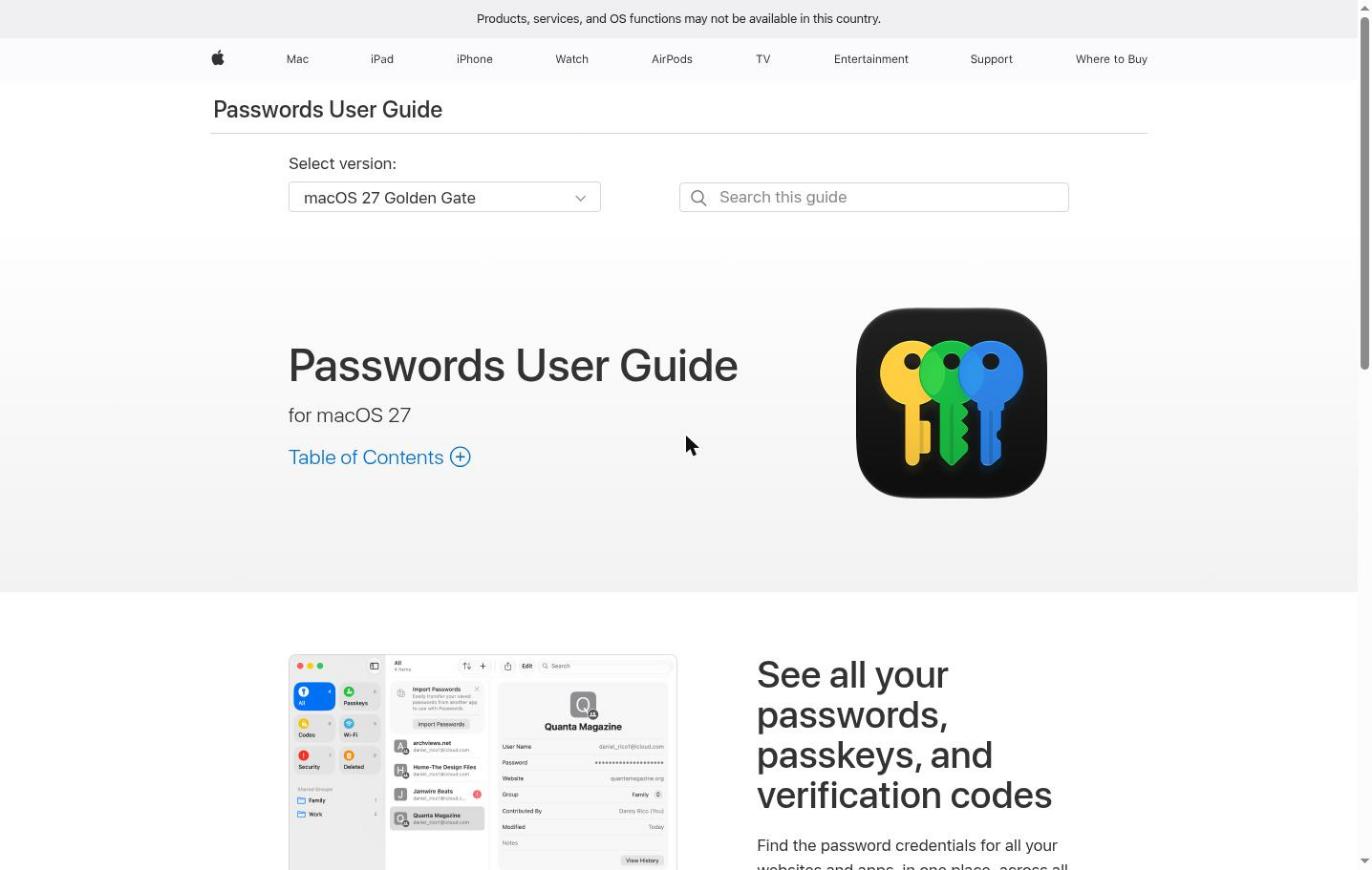
Apple’s dedicated Passwords app (introduced with iOS 18 and macOS Sequoia) turned iCloud Keychain into a full-featured password manager. It stores passwords, passkeys, Wi-Fi passwords and verification codes for two-factor authentication, and lets you share credentials through shared groups.
How it is encrypted: iCloud Keychain is end-to-end encrypted with AES-256-GCM. Keys are protected by your device passcode and hardware such as the Secure Enclave, so Apple cannot read your passwords – even without Advanced Data Protection enabled. Viewing a password requires Face ID, Touch ID or your device password.
The main limitation is the ecosystem: it works best if all your devices are Apple. Windows is supported through iCloud for Windows and a browser extension, but there is no Android or Linux support.
- ✔End-to-end encryption with hardware-backed keys
- ✔Built-in 2FA codes and passkeys
- ✔Biometric protection for every reveal
- ✔Free and deeply integrated with Apple devices
- ✖No Android or Linux support
- ✖Windows support is limited
- ✖Locked into the Apple ecosystem
- ✖Fewer export and organization options
Microsoft Edge Password Manager
🏆 Best for Windows Users
Microsoft Edge is built on Chromium, so its local password storage works much like Chrome’s: credentials are encrypted with AES-256-GCM and, on Windows, protected with DPAPI. Passwords sync through your Microsoft account, which makes Edge convenient for Windows users who already sign in with Microsoft.
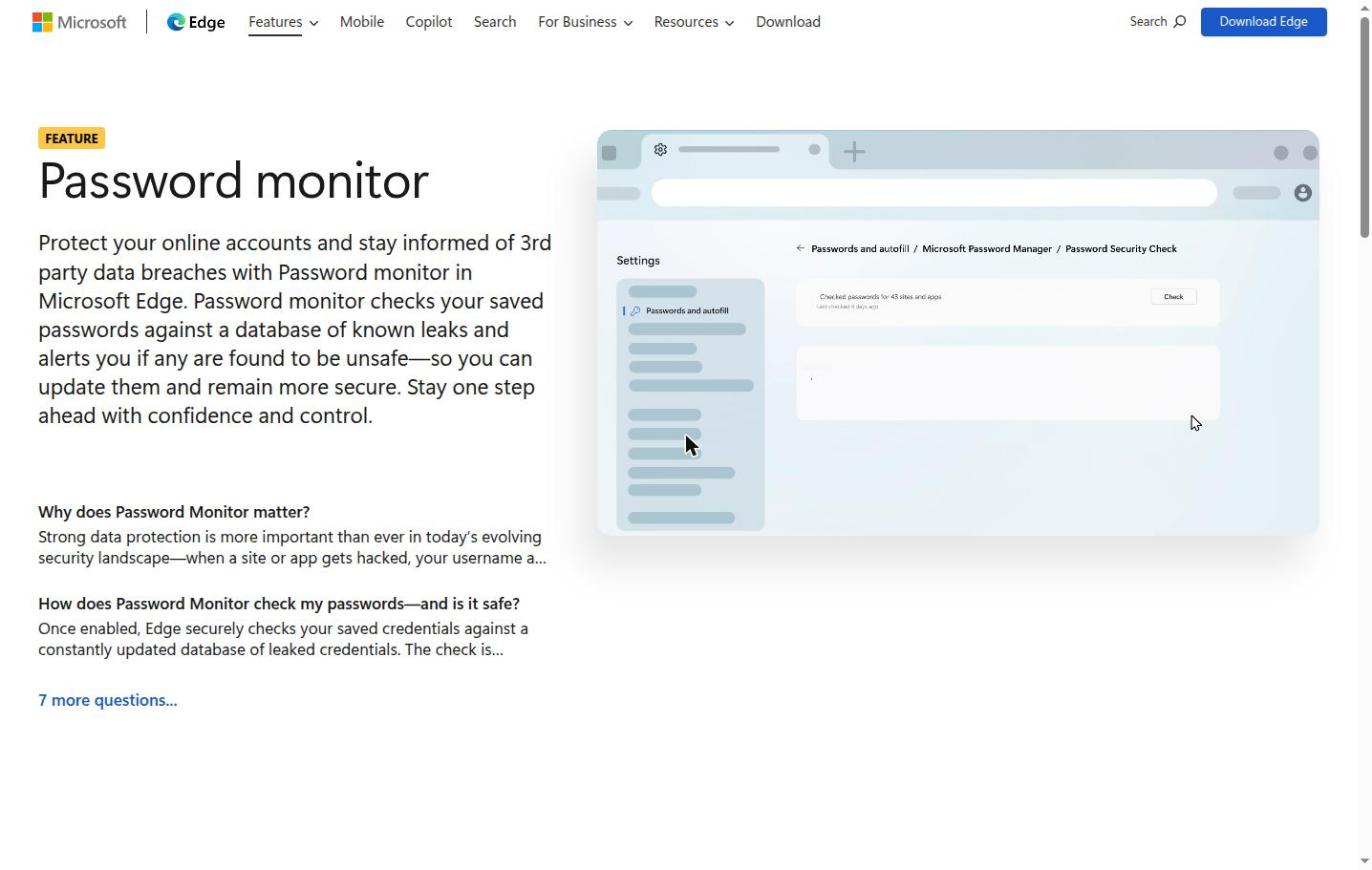
Password Monitor checks your saved credentials against a database of known leaks and alerts you when something is exposed, and a built-in generator suggests strong passwords. Microsoft has also moved password autofill from the Microsoft Authenticator app into Edge, making Edge the central place for Microsoft users’ saved passwords.
As with Chrome’s default setting, sync security depends on your Microsoft account – enable two-step verification or, better, passkeys for your account.
- ✔Seamless for Windows and Microsoft 365 users
- ✔Password Monitor breach alerts
- ✔Free on all major platforms
- ✔Strong password generator
- ✖Same infostealer exposure as other Chromium browsers
- ✖Security depends on Microsoft account protection
- ✖Limited sharing and organization features
Brave Browser Password Manager
🏆 Best Account-Free Sync
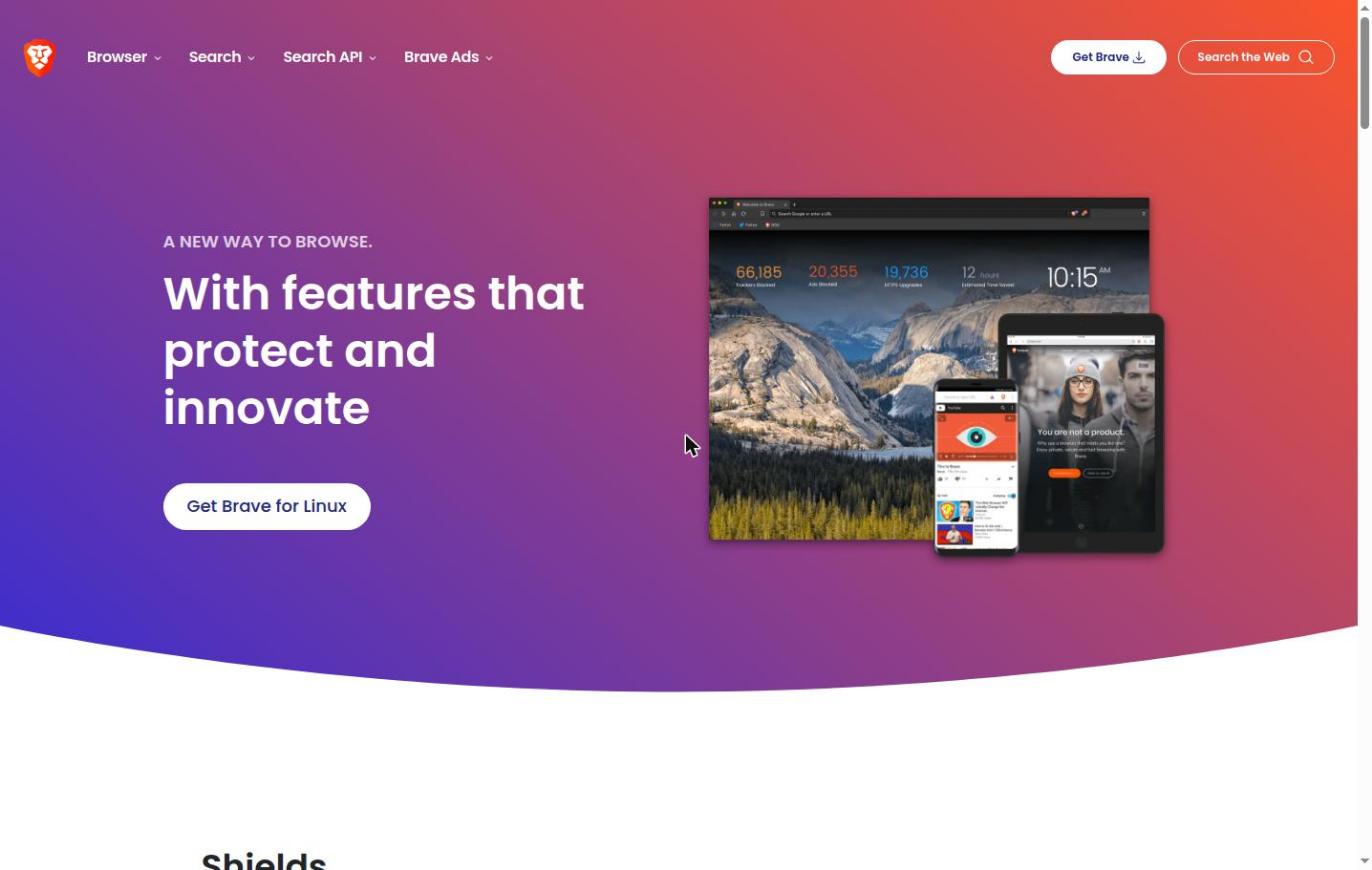
Brave uses Chromium’s password storage, so local encryption is similar to Chrome and Edge. What sets it apart is Brave Sync: instead of an account, you create a sync chain protected by a sync code, and your data is end-to-end encrypted before it leaves your device. Brave does not require an email address or account at all.
The trade-off is features: Brave’s password manager is fairly basic, with fewer breach-monitoring and sharing options than Chrome, Edge or Apple Passwords. If you lose all devices in your sync chain and your sync code, your synced data cannot be recovered.
- ✔No account required for sync
- ✔End-to-end encrypted sync chain
- ✔Privacy-first browser with built-in tracker blocking
- ✖Basic feature set
- ✖Limited breach monitoring
- ✖Same infostealer exposure as other Chromium browsers
- ✖Losing your sync code means losing synced data
The Convenience: Why People Love Built-in Managers
- Free and already installed – no new app, account or subscription.
- Automatic saving and autofill – the browser offers to save every new login.
- Strong password generation – all major browsers suggest random passwords on sign-up forms.
- Breach alerts – Chrome, Firefox, Edge and Apple warn you about passwords found in data leaks.
- Passkeys – browsers and operating systems are leading the shift to phishing-resistant passkeys.
- Phishing resistance – autofill only works on the exact domain where a password was saved.
The Risks: Where Browser Password Managers Fall Short
1. Infostealer malware
Infostealers such as RedLine, Raccoon and Lumma are designed to extract saved passwords, cookies and credit cards from browsers and upload them to criminals in seconds. Stolen “logs” are then sold on underground markets and used for account takeovers. Because Chromium-based browsers are the most widely used, their password stores are the most targeted. Google’s App-Bound Encryption raised the bar on Windows in 2024, but malware authors and researchers demonstrated workarounds within months. Law enforcement and Microsoft disrupted Lumma’s infrastructure in 2025, yet infostealers remain one of the leading sources of leaked credentials.
2. Your account is the master key
When sync is encrypted with provider-managed keys (Chrome’s default, Edge), anyone who takes over your Google or Microsoft account may be able to view your synced passwords. A phished account can therefore expose every saved login at once.
3. No separate master password by default
Most browsers unlock your passwords as soon as you are logged in to your computer. Anyone using your unlocked device – or malware running in your session – can often reveal them. Only Firefox (Primary Password) and Apple (biometrics) add a strong extra barrier.
4. Ecosystem lock-in and limited features
Browser managers are tied to one browser or one vendor’s ecosystem. Sharing with family members on other platforms, storing secure notes and documents, emergency access and auditing are limited compared with dedicated tools like 1Password or Bitwarden.
5. Weak spots on some platforms
On Linux without a keyring, Chromium browsers fall back to much weaker key protection, and older or unmaintained browser versions miss security improvements.
How Likely Is a Leak? Threat-by-Threat Breakdown
There is no single “probability of being hacked” – it depends on the threat. The matrix below shows the relative risk for each browser with default settings.
| Threat | Chrome | Firefox | Apple Passwords | Edge | Brave |
|---|---|---|---|---|---|
| Infostealer malware on your computer
The #1 real-world threat. Malware running as your user can often decrypt browser-stored passwords.
|
High | Medium–High | Low–Medium | High | High |
| Breach of the provider’s sync servers
End-to-end encrypted sync makes stolen server data useless without your keys.
|
Low–Medium | Low | Low | Low–Medium | Low |
| Takeover of your Google / Microsoft / Apple / Mozilla account
Phishing your main account can expose synced passwords – especially when the provider manages the keys.
|
High | Medium | Low–Medium | High | Low |
| Someone using your unlocked device
Requiring OS login, a Primary Password or biometrics before revealing passwords reduces this risk.
|
Medium | Low–Medium | Low | Medium | Medium |
Relative risk with default settings – VPNella editorial assessment based on vendor documentation and public security research. Firefox’s malware risk drops to Low–Medium when a Primary Password is enabled; Chrome’s account and server risks drop when on-device encryption is turned on.
The bottom line: large-scale breaches of browser vendors’ sync servers that expose readable passwords have not been the main problem – local malware and account takeovers are. That means your own security habits matter more than which browser you choose.
How to Make Your Browser Password Manager Safer
- Chrome: turn on on-device encryption for passwords in Google Password Manager settings, and protect your Google account with a passkey or security key.
- Firefox: enable a Primary Password in Settings → Privacy & Security, and use a strong Mozilla account password with two-step authentication.
- Apple: use a strong device passcode, keep two-factor authentication on for your Apple Account, and consider Advanced Data Protection.
- Edge: secure your Microsoft account with passkeys or an authenticator app and enable Password Monitor.
- Brave: store your sync code somewhere safe and offline.
- Everyone: keep your OS and browser updated, avoid pirated software and suspicious downloads (the main source of infostealers), use reputable antivirus protection, and prefer passkeys wherever sites support them.
- Use a trusted VPN like Proton VPN or NordVPN on public Wi-Fi.
When You Should Switch to a Dedicated Password Manager
A browser password manager is fine for many people. Consider a dedicated password manager if you:
- use multiple browsers or mixed ecosystems (e.g., iPhone + Windows + Android);
- want a separate master password and stronger protection against malware and account takeover;
- need to share passwords with family or colleagues;
- want to store secure notes, documents, 2FA codes and email aliases in one place;
- want independent security audits and features like emergency access or travel mode.
Our guide to the best password managers compares free and paid options in detail – including Bitwarden (best free), 1Password (best overall) and Proton Pass (best for privacy). All of them can import your browser passwords in a few minutes.
Frequently Asked Questions
Is it safe to save passwords in my browser?
Yes – it is much safer than reusing passwords or writing them down. The main risks are malware on your computer and a compromised browser account, so keep your device clean and protect your account with strong authentication.
Which browser has the most secure password manager?
Apple Passwords (Safari / iCloud Keychain) is the most secure built-in option thanks to end-to-end encryption and hardware-backed keys. Firefox with a Primary Password is the best cross-platform choice for privacy.
Can Google see my saved passwords?
By default, Chrome sync uses keys managed by Google. If you enable on-device encryption, only your devices can decrypt your passwords.
What encryption do browsers use for passwords?
Chrome, Edge and Brave use AES-256-GCM with keys protected by the operating system; Firefox uses AES-256 with an optional Primary Password; Apple uses end-to-end encrypted AES-256-GCM protected by your device passcode and the Secure Enclave.
How do I move my browser passwords to a password manager?
Export your passwords to a CSV file from browser settings (or use the manager’s direct import tool), import them into the new manager, then securely delete the CSV file and turn off password saving in the browser.
Final Verdict
Built-in browser password managers have improved dramatically and are a perfectly reasonable choice for many people. Apple Passwords leads on security, Firefox on privacy, and Chrome on convenience. However, all of them are exposed to infostealer malware and depend on the security of a single account.
If you want a separate master password, cross-platform freedom, secure sharing and independent audits, a dedicated password manager is the safer long-term choice. See our full comparison of the best free and paid password managers to find the right one for you.
Leave a Reply