
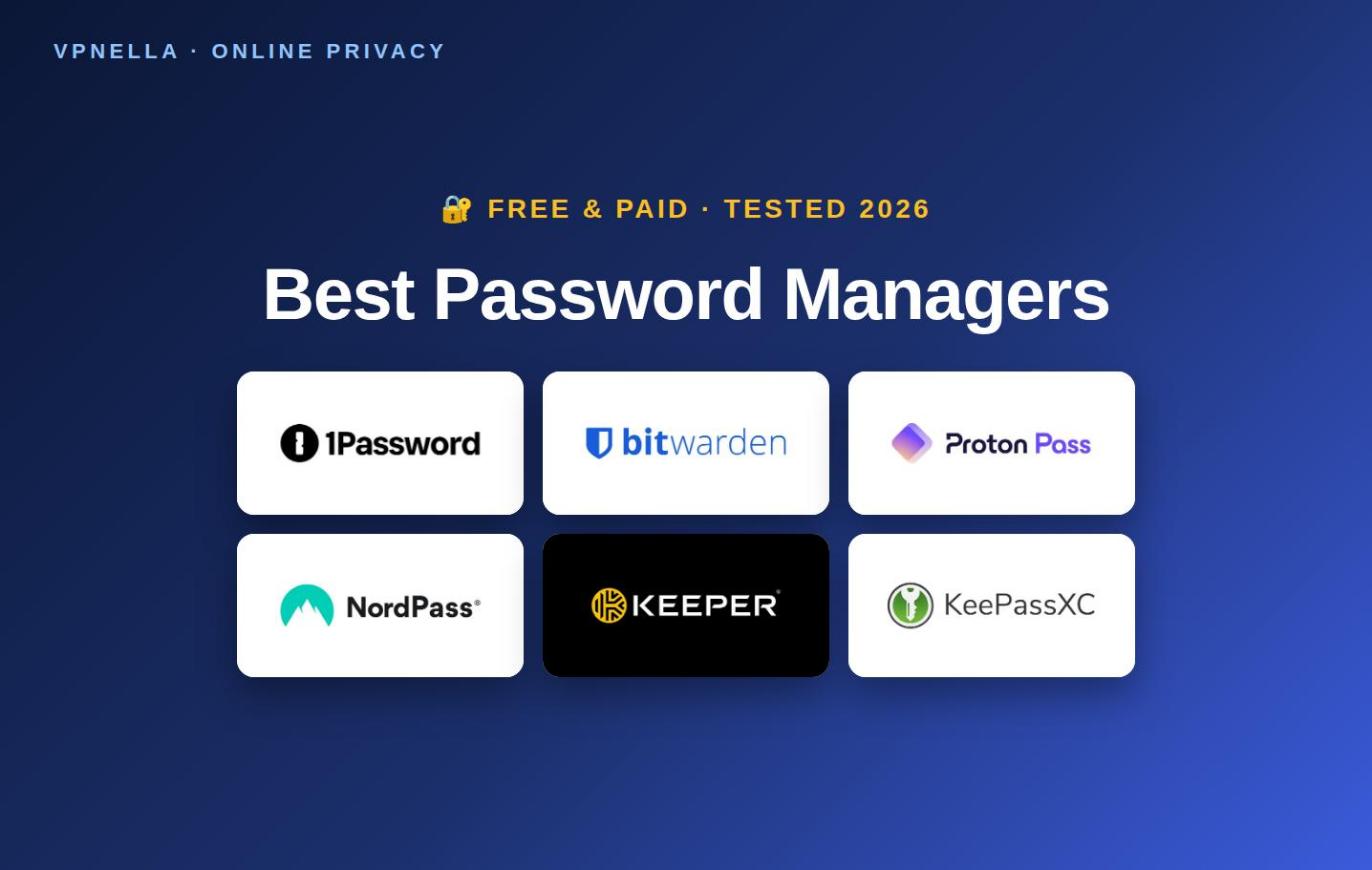
The average person now juggles well over a hundred online accounts – and reusing passwords across them is one of the easiest ways to get hacked. A password manager solves this by generating a strong, unique password for every site, storing them in an encrypted vault and filling them in automatically. In this long-read guide we compare the best free and paid password managers of 2026, explain how they protect your data, and show you exactly how to choose and set one up.
Quick Picks: The Best Password Managers at a Glance
Short on time? Here are our top recommendations for different needs. Click any card to jump to the full review.
Comparison Table: Free vs Paid Features
The table below compares the most important features side by side. Scroll horizontally on mobile to see all providers.
| Feature | 1Password | Bitwarden | Proton Pass | NordPass | Keeper | KeePassXC |
|---|---|---|---|---|---|---|
| Our rating | 4.8/5 | 4.8/5 | 4.7/5 | 4.5/5 | 4.5/5 | 4.3/5 |
| Free plan | No (trial) | Yes, unlimited | Yes, unlimited logins | Yes, 1 session | No (trial) | Yes, 100% free |
| Starting paid price | $2.99–3.99/mo | $1.65/mo | $2.99/mo | $1.39/mo | $3.58/mo | Free |
| Family plan | 5 users | 6 users | Via Proton plans | 6 users | Yes | — |
| Open source | No | Yes | Yes | No | No | Yes |
| Passkeys | ✔ | ✔ | ✔ | ✔ | ✔ | ✔ |
| Built-in 2FA codes | ✔ | Premium | Plus | — | Add-on | ✔ |
| Email aliases | Masked Email | Via integrations | ✔ Built-in | ✔ Masking | — | — |
| Breach monitoring | ✔ Watchtower | Reports (Premium) | ✔ (Plus) | ✔ Premium | BreachWatch add-on | — |
| Self-hosting / offline | — | ✔ Self-host | — | — | — | ✔ Offline |
Prices shown on official websites in October 2026 (USD). Long-term and promotional pricing may apply only to the first billing period.
Why You Need a Password Manager
Most account takeovers do not involve sophisticated hacking. Attackers simply take usernames and passwords leaked in one data breach and try them on other websites – a technique called credential stuffing. If you reuse a password anywhere, one breach can unlock your email, banking and social media accounts.
A password manager eliminates this risk:
- Unique passwords everywhere – a built-in generator creates long, random passwords for every account.
- One password to remember – you only need to memorize a single strong master password.
- Phishing protection – autofill only works on the real website domain, so fake login pages are easier to spot.
- Breach alerts – most managers warn you when a saved password appears in a known data leak.
- Secure storage for more than passwords – credit cards, passkeys, 2FA codes, secure notes and documents.
Combined with a good VPN on public Wi-Fi and two-factor authentication, a password manager is one of the most effective privacy upgrades you can make.
How We Evaluated Password Managers
We compared each password manager across six criteria that matter in everyday use:
- Security architecture – zero-knowledge encryption, independent audits, breach history and account protection options.
- Free plan quality – real limits on devices, passwords and features.
- Ease of use – setup, import, autofill reliability on desktop and mobile.
- Features – passkeys, 2FA codes, secure sharing, breach monitoring, email aliases, emergency access.
- Platform support – Windows, macOS, Linux, iOS, Android and major browsers.
- Value for money – individual and family pricing, including renewal costs.
1. 1Password – Best Overall
Best for: Anyone who wants the most polished, feature-rich experience
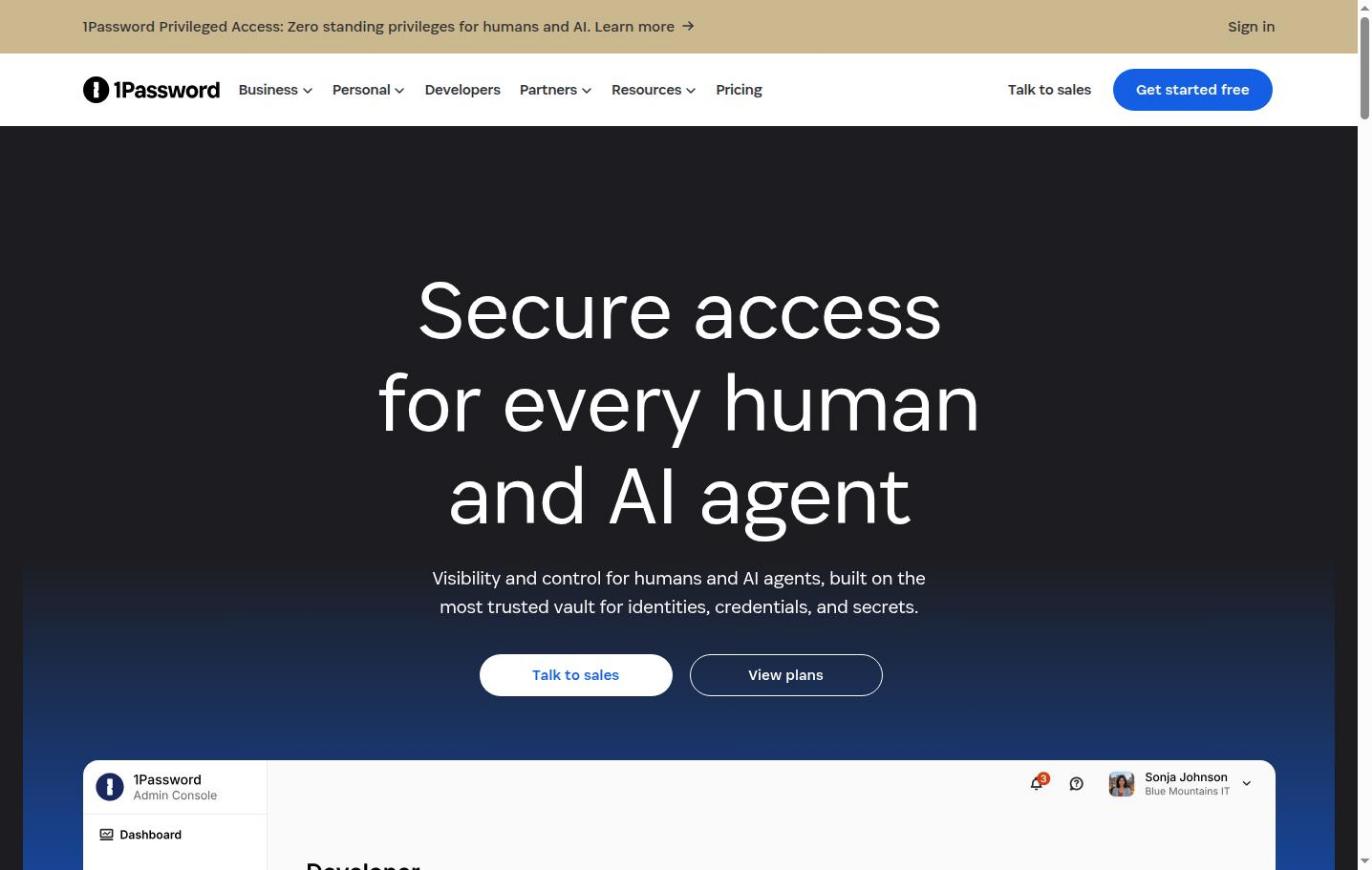
1Password is the password manager we recommend to most people who are willing to pay. It combines rock-solid security with the most polished apps on the market. Beyond your master password, every account is protected by a unique 128-bit Secret Key generated on your device, so even if 1Password’s servers were breached, attackers would not have enough to brute-force your vault.
Everyday use is effortless: autofill works reliably across browsers and mobile apps, passkeys are fully supported, and Watchtower warns you about weak, reused and breached passwords, sites that support two-factor authentication and expiring credit cards. Extras like Travel Mode (temporarily hide sensitive vaults when crossing borders), secure item sharing with non-users, built-in TOTP codes, Masked Email (via Fastmail) and developer tools such as an SSH agent and CLI make it the most complete package available.
The Families plan covers up to five people with shared and private vaults, plus account recovery for family members who forget their password.
- ✔Best-in-class apps and autofill
- ✔Secret Key adds an extra layer of protection
- ✔Watchtower security dashboard
- ✔Travel Mode and secure sharing
- ✔Excellent family plan and recovery options
- ✖No free plan
- ✖More expensive than Bitwarden or NordPass
- ✖Promotional price only for the first year
2. Bitwarden – Best Free
Best for: Budget-conscious users, open-source fans and tech-savvy families
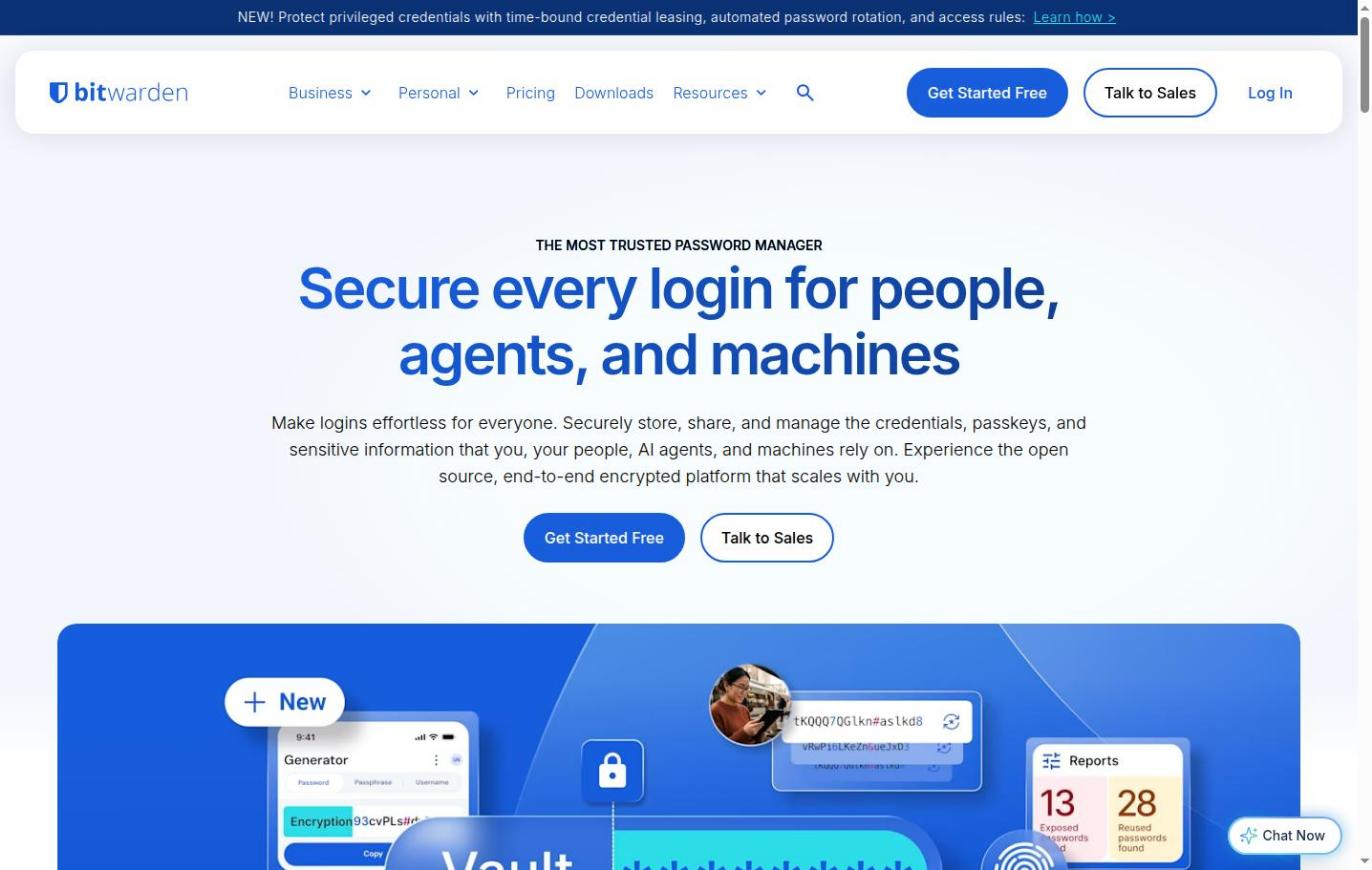
Bitwarden is the best free password manager and one of the best overall. Its free plan has no artificial limits: unlimited passwords, unlimited devices and full sync across Windows, macOS, Linux, iOS, Android and every major browser. The code is open source and audited by independent security firms, so its security claims can be verified by anyone.
Premium costs less than $20 per year and adds an integrated TOTP authenticator, encrypted file attachments, vault health reports and emergency access. The Families plan covers up to six users for under $4 per month – the cheapest family plan among the top password managers.
Advanced users can even self-host Bitwarden on their own server. The trade-off is a slightly more utilitarian interface than 1Password, and autofill on mobile is good but not quite as seamless.
- ✔Generous free plan with unlimited devices
- ✔Open source and regularly audited
- ✔Cheapest premium and family plans
- ✔Self-hosting option
- ✔Passkey support
- ✖Interface less polished than 1Password
- ✖Some extras require Premium
- ✖Autofill slightly less smooth on mobile
3. Proton Pass – Best for Privacy
Best for: Privacy-focused users and existing Proton customers
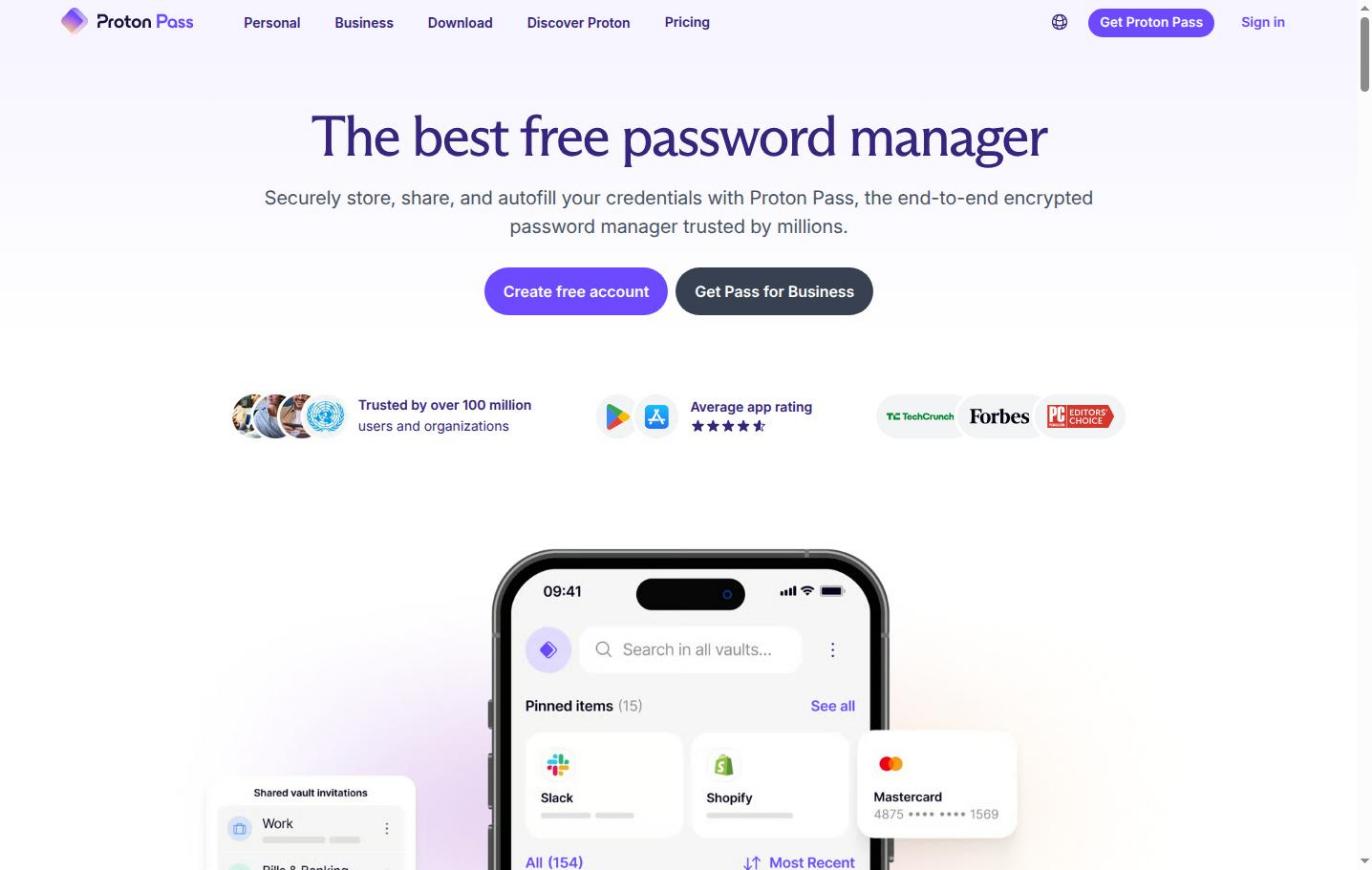
Proton Pass comes from the Swiss company behind Proton Mail and Proton VPN. It is open source, end-to-end encrypted and independently audited, and it encrypts not only your passwords but also metadata such as website URLs and usernames.
Its standout feature is hide-my-email aliases: generate a unique email address for each website directly from the password generator, and stop spam and tracking before it reaches your real inbox. The free plan already includes unlimited logins, unlimited devices and a limited number of aliases. Pass Plus unlocks unlimited aliases, an integrated 2FA authenticator, vault sharing, advanced account protection and more.
If you already pay for Proton Unlimited, Pass Plus is included alongside Mail, Drive, Calendar and VPN – excellent value for a complete privacy suite.
- ✔Strong free plan with unlimited logins
- ✔Built-in email aliases
- ✔Swiss jurisdiction, open source, audited
- ✔Encrypts metadata too
- ✔Great value in the Proton bundle
- ✖Younger product with fewer advanced features
- ✖Desktop apps less mature than 1Password
- ✖Best value requires annual billing
4. NordPass – Best Value
Best for: Beginners and NordVPN users looking for a simple, cheap option
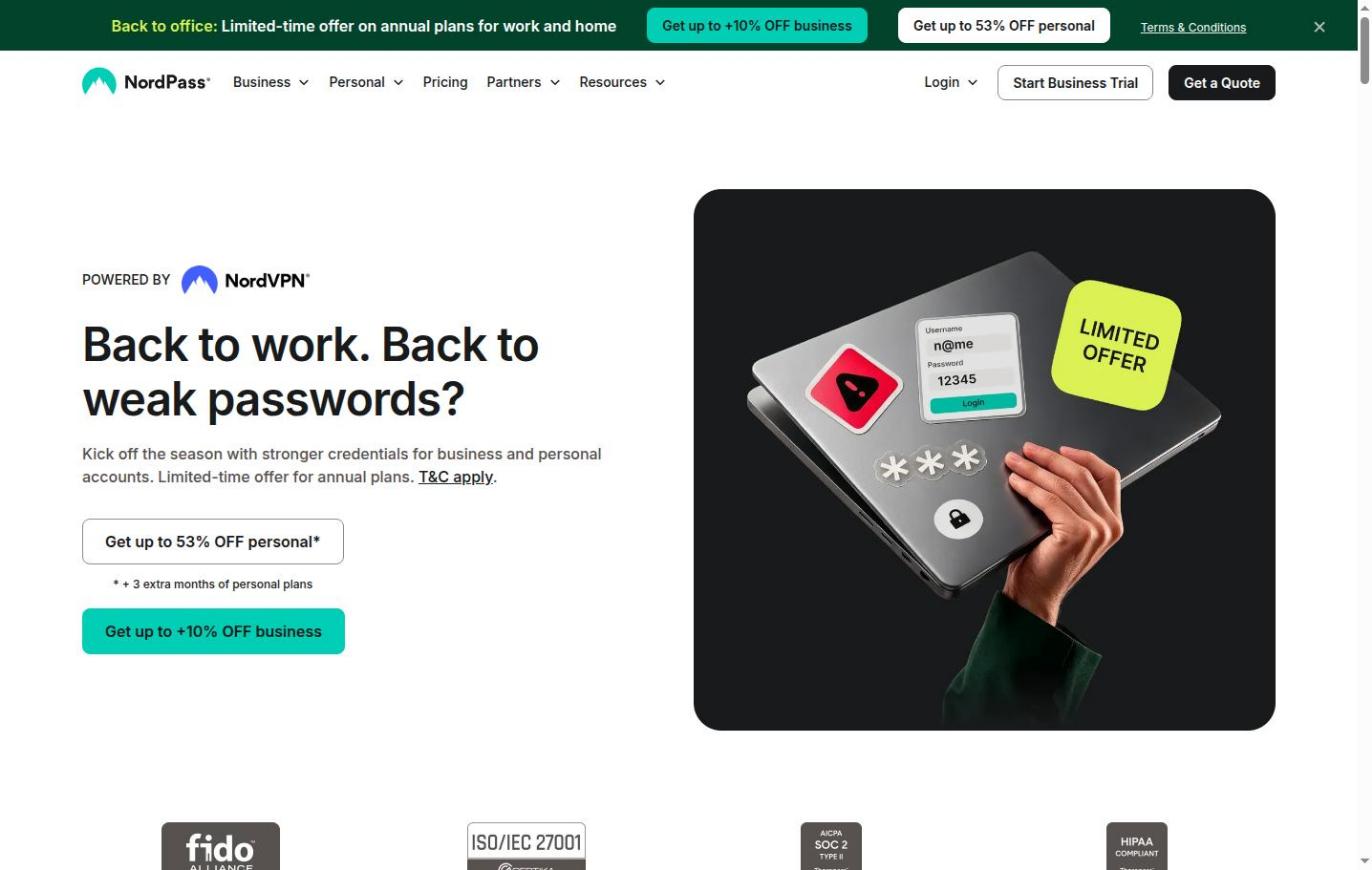
NordPass is built by Nord Security, the company behind NordVPN. It uses the modern XChaCha20 encryption algorithm and a zero-knowledge architecture, and it has been independently audited.
The apps are clean and very beginner-friendly. Premium adds a Data Breach Scanner, password health reports, email masking, file attachments and the ability to stay logged in on multiple devices at once. The free plan stores unlimited passwords, but only allows one active session at a time, which makes it inconvenient if you switch between phone and computer often.
On long-term plans NordPass is one of the cheapest premium password managers, and promotions frequently add extra months for free.
- ✔Very affordable long-term plans
- ✔Clean, beginner-friendly apps
- ✔Modern XChaCha20 encryption
- ✔Breach scanner and email masking
- ✔Family plan for up to 6 users
- ✖Free plan limited to one active session
- ✖Lowest prices require 2-year commitment
- ✖Fewer power-user features than 1Password
5. Keeper – Best for Security Extras
Best for: Security-conscious users and families who want add-ons like breach monitoring and encrypted storage
Keeper is a veteran password manager with an enterprise-grade security pedigree. Its zero-knowledge platform holds certifications such as SOC 2 and ISO 27001, and a dedicated government cloud is FedRAMP authorized – credentials few consumer password managers can match.
For individuals, Keeper offers fast apps, strong autofill, passkey support, secure record sharing and emergency access. Its modular approach lets you add BreachWatch dark-web monitoring, encrypted cloud file storage and other extras. The Family plan includes shared folders and 10 GB of secure file storage.
The downside is cost: once you add the extras, Keeper becomes one of the more expensive options, and there is no permanent free plan.
- ✔Enterprise-grade certifications
- ✔Fast, polished apps with passkeys
- ✔Encrypted file storage and sharing
- ✔Strong family plan
- ✔Granular sharing and emergency access
- ✖No permanent free plan
- ✖Useful extras cost more
- ✖Upsells inside the apps
6. KeePassXC – Best Offline & Open Source
Best for: Technical users who want full control and no cloud
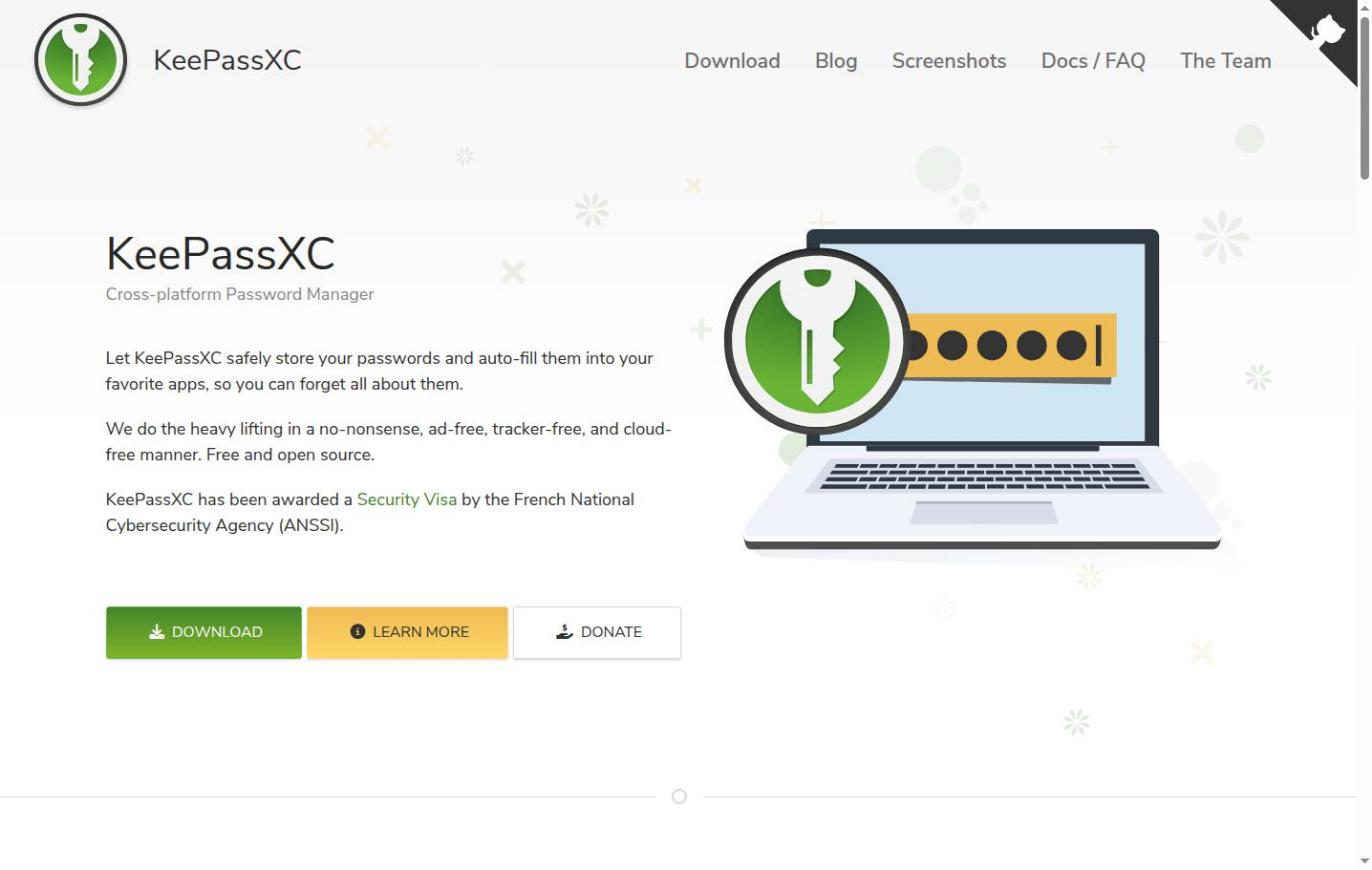
KeePassXC is a free, open-source, offline password manager. Your passwords live in an encrypted KDBX database file that you control – there is no account, no cloud and no subscription. It has even been awarded a Security Visa by France’s national cybersecurity agency, ANSSI.
The desktop app runs on Windows, macOS and Linux and includes a strong password generator, TOTP codes, SSH agent integration, YubiKey support and a browser extension for autofill. Because the database uses the open KeePass format, you can open it on mobile with compatible apps such as KeePassDX (Android) or KeePassium and Strongbox (iOS).
The price of total control is convenience: you are responsible for syncing and backing up your database file, for example via your own cloud storage. That makes KeePassXC ideal for technical users, but less suitable for families or beginners.
- ✔Completely free with no limits
- ✔Offline – your data never leaves your devices
- ✔Open source and ANSSI-certified
- ✔TOTP, SSH agent and YubiKey support
- ✔Open KDBX format avoids lock-in
- ✖No built-in sync between devices
- ✖No official mobile apps
- ✖Less user-friendly than cloud managers
Free vs Paid Password Managers
Do you actually need to pay? Not necessarily. Bitwarden, Proton Pass and KeePassXC all offer free versions that are secure enough for everyday use, and Bitwarden and Proton Pass even sync across unlimited devices.
Paid plans make sense if you want:
- Family sharing with separate private vaults and account recovery.
- Built-in 2FA authenticator codes and advanced security reports.
- Breach and dark-web monitoring.
- Encrypted file storage and secure document sharing.
- Email aliases to keep your real address private.
- Priority support and emergency access.
What About Built-in Browser and Phone Password Managers?
Google Password Manager (in Chrome and Android) and Apple Passwords (on iPhone, iPad and Mac) are free, convenient and much better than reusing passwords. They generate strong passwords, support passkeys and warn you about compromised credentials.
However, they have important limitations: they work best inside a single ecosystem, cross-platform support is limited (for example, using Apple Passwords on Android or Chrome on Linux is awkward), sharing with family members on different platforms is harder, and they lack advanced features like secure notes with attachments, travel modes or email aliases. If you use devices from more than one company, a dedicated password manager is the better long-term choice.
How to Choose the Right Password Manager
Use this quick checklist:
- ✅ Want the best experience and don’t mind paying? Choose 1Password.
- ✅ Want a free option with no limits? Choose Bitwarden.
- ✅ Care most about privacy and email aliases? Choose Proton Pass.
- ✅ Want the lowest price for premium features? Choose NordPass.
- ✅ Need enterprise-grade certifications and file storage? Choose Keeper.
- ✅ Want full offline control with no cloud? Choose KeePassXC.
Also check that your manager supports all your devices, offers passkeys, and has been independently audited.
How to Switch to a Password Manager in 6 Steps
- Pick a manager from the list above and create an account.
- Create a strong master password – a passphrase of 4–6 random words is both secure and memorable.
- Enable two-factor authentication on the password manager account itself.
- Import existing passwords from your browser or old manager (all managers support CSV import; delete the CSV file afterwards).
- Install the browser extension and mobile app, and set the manager as your default autofill provider.
- Fix weak and reused passwords using the security dashboard – start with email, banking and social media accounts.
Password Security Best Practices
- Never reuse your master password anywhere else.
- Use passkeys where available – they are phishing-resistant and replace passwords entirely.
- Turn on 2FA for important accounts, ideally with an authenticator app or hardware key.
- Set up emergency access or account recovery so a trusted person can help if you are locked out.
- Keep apps updated on all devices.
- Be careful on public Wi-Fi – a trusted VPN such as Proton VPN or NordVPN adds an extra layer of protection.
Password Managers to Approach With Caution
LastPass was once the most popular password manager, but in 2022 it disclosed a serious security incident in which attackers stole backups of customer vaults. Although vaults are encrypted, users with weak master passwords were put at risk, and the incident damaged trust in the service. We recommend choosing one of the alternatives above.
Dashlane remains a capable product, but its website now focuses on business plans (its Omnix password management package was listed at $8 per user per month in October 2026), making it less attractive for individuals and families compared with the options in this guide.
Frequently Asked Questions
Are password managers safe?
Yes. Reputable password managers use zero-knowledge, end-to-end encryption, which means your vault is encrypted on your device and the provider cannot read it. Choosing an audited provider and a strong master password keeps your data safe.
What is the best free password manager?
Bitwarden is the best free password manager, offering unlimited passwords and devices. Proton Pass is a close second, especially if you want built-in email aliases.
What happens if I forget my master password?
Because of zero-knowledge encryption, providers usually cannot reset it. Set up account recovery, emergency access or a recovery kit (such as 1Password’s Emergency Kit) when you create your account.
Can a password manager store passkeys?
Yes. All the password managers in this guide support passkeys, allowing you to sync them across devices and platforms.
Is it safe to store 2FA codes in the same password manager?
It is convenient and still far safer than no 2FA, but storing codes separately (in an authenticator app or hardware key) provides stronger protection for your most critical accounts.
Should I use my browser’s built-in password manager?
It is better than reusing passwords, but dedicated managers offer better cross-platform support, sharing and security features.
Final Verdict
1Password is the best password manager overall thanks to its polished apps, unique Secret Key security and excellent family features. If you want a free solution, Bitwarden is unbeatable, while Proton Pass is the top pick for privacy enthusiasts. NordPass offers the best value for beginners, Keeper excels with enterprise-grade security extras, and KeePassXC is ideal if you want complete offline control.
Whichever you choose, the most important step is to start using one today – it is the single easiest way to protect all your online accounts.
Leave a Reply