


You try to visit a news site or social media platform, and instead of the page loading, your browser throws a “server not found” error. Your internet connection works fine for everything else. The problem is DNS blocking: someone between you and the website is preventing your device from translating the domain name into an IP address. Governments use it to enforce censorship, ISPs deploy it under court orders for copyright enforcement, and corporations filter employee access for security or productivity. DNS blocking works at a technical level through several mechanisms. Different actors implement it for different reasons. Tools that bypass it include changing DNS servers, encrypted DNS protocols, and VPNs, with effectiveness depending on your situation.
What Is DNS Blocking and How Does It Work?

When you type a website address into your browser, your device asks a DNS (Domain Name System) server to translate that human-readable domain into a numerical IP address. DNS blocking interrupts this translation process, preventing your device from finding the server it needs to connect to. The website itself remains online and accessible by IP address, but without a successful DNS lookup, most users can’t reach it.
The DNS Resolution Process
Your computer doesn’t know where www.example.com lives on the internet. It sends a query to a DNS resolver (usually operated by your ISP or a third-party service like Cloudflare or Google) asking for the IP address associated with that domain. The resolver either returns the correct address (say, 93.184.216.34), allowing your browser to connect, or it consults other DNS servers in a hierarchy until it finds the answer. This process typically takes 20-120 milliseconds for a successful query.
Blocking happens when someone controlling a DNS resolver decides not to return the real answer.
Three Common DNS Blocking Techniques
NXDOMAIN responses tell your device the domain doesn’t exist. The resolver sends back an error code (NXDOMAIN, or “non-existent domain”), and your browser displays a “server not found” message. This is the cleanest technical approach, mimicking what happens when you mistype a web address.
Null IP addresses return 0.0.0.0 or 127.0.0.1 instead of the real IP. Your browser receives an answer, but it points nowhere useful. Some implementations route you to your own computer (127.0.0.1), generating an instant connection failure. Others use 0.0.0.0, which most systems interpret as an invalid destination.
Redirect pages send you to a different IP address entirely, one hosting a warning or explanation page. Governments and ISPs use this method when they want to inform users why access was denied. Court-ordered DNS blocking affects over 100,000 domains in the European Union alone (primarily piracy and gambling sites, according to 2026 EU digital strategy reports), and many of these blocks redirect to legal notices rather than showing generic error messages.
Who Implements DNS Blocking and Why?
More than 60 countries now use DNS filtering to control what their citizens can access online, according to Access Now’s internet monitoring data. China, Iran, and Russia lead in scope and technical sophistication, but the practice spans democracies and authoritarian states alike. The motivations vary wildly: some governments cite national security, others enforce religious codes, and many simply want to silence political opposition.
Government and ISP Censorship
When authorities decide a website threatens their interests, they typically compel local internet service providers to implement DNS blocks. Over 175 million domains are currently blocked worldwide through DNS filtering as of 2026, with copyright infringement serving as the official justification in most cases (Google Transparency Report). Court orders in the European Union alone affect more than 100,000 domains, primarily targeting piracy and counterfeit goods.
ISPs carry out these blocks because they have no choice. Legal compliance trumps user access. In Turkey, DNS filtering removes political content within hours of a court order. In India, ISPs block domains during periods of civil unrest. The United Kingdom requires ISPs to maintain lists of blocked gambling and adult sites, enforced at the DNS resolver level.
Corporate Network Filtering
Over 70% of enterprises use DNS filtering to protect their networks, according to Gartner research. The threat justification is real: 85% of malware uses DNS during attacks (Cisco’s 2025 security report), making DNS-level blocking an efficient early defense.
Corporate motivations split into two camps. Security teams block known malware command-and-control servers, phishing domains, and newly registered suspicious sites. IT departments filter social media, streaming services, and other productivity drains. Compliance officers enforce industry regulations that restrict access to certain content categories.
A hospital might block gaming sites to preserve bandwidth for medical systems. A financial firm might prevent access to cryptocurrency exchanges to satisfy regulatory audits. The technology is identical to government censorship, but the scale and intent differ. Companies control their own networks; governments control entire national internet infrastructures.
DNS Blocking vs. Other Censorship Methods
Censors choose DNS blocking as their entry point because it requires minimal infrastructure: a government or ISP simply instructs DNS resolvers under their control to return false answers or no answer at all. This approach costs less than alternatives and scales easily across millions of users, which explains why countries from Turkey to Iran deploy it as their first censorship layer.
Why DNS Blocking Is Popular Among Censors
The technical barrier is low. An administrator can block thousands of domains by maintaining a simple blacklist, updating it through automated feeds, and distributing it to resolver software. No specialized hardware sits in the network path analyzing traffic; the resolver itself does the filtering. This simplicity comes with a trade-off: users bypass DNS blocks by switching to resolvers outside the censor’s jurisdiction (8.8.8.8, 1.1.1.1) or encrypting their DNS queries with DNS over HTTPS.
Advanced Blocking Techniques
IP blocking targets the actual server addresses behind domain names. When a censor blocks an IP, changing your DNS resolver won’t help because the network drops packets destined for that address regardless of how you discovered it. This method works well for single-server sites but becomes impractical against content delivery networks where one IP might host thousands of unrelated sites, or where a service uses hundreds of IPs that change frequently.
SNI filtering reads the Server Name Indication field during TLS handshakes, letting censors block specific hostnames even when multiple sites share an IP address. Deep packet inspection goes further, analyzing packet contents in real time to identify and block traffic patterns, VPN protocols, or Tor connections. Both techniques require expensive hardware installed at internet exchange points.
| Method | Implementation Cost | Bypass Difficulty | Collateral Damage |
|---|---|---|---|
| DNS blocking | Low | Easy | Minimal |
| IP blocking | Low | Medium | High (shared IPs) |
| SNI filtering | High | Medium | Low |
| Deep packet inspection | Very high | Hard | Variable |
Countries with sophisticated censorship systems layer these methods together. China’s Great Firewall combines DNS poisoning, IP blocking, SNI filtering and DPI, forcing users to employ multiple circumvention techniques simultaneously. Most censors, however, rely primarily on DNS blocking because the cost-benefit calculation favors it: they block casual access without the expense of comprehensive infrastructure.
Bypassing DNS Blocking: Changing Your DNS Server
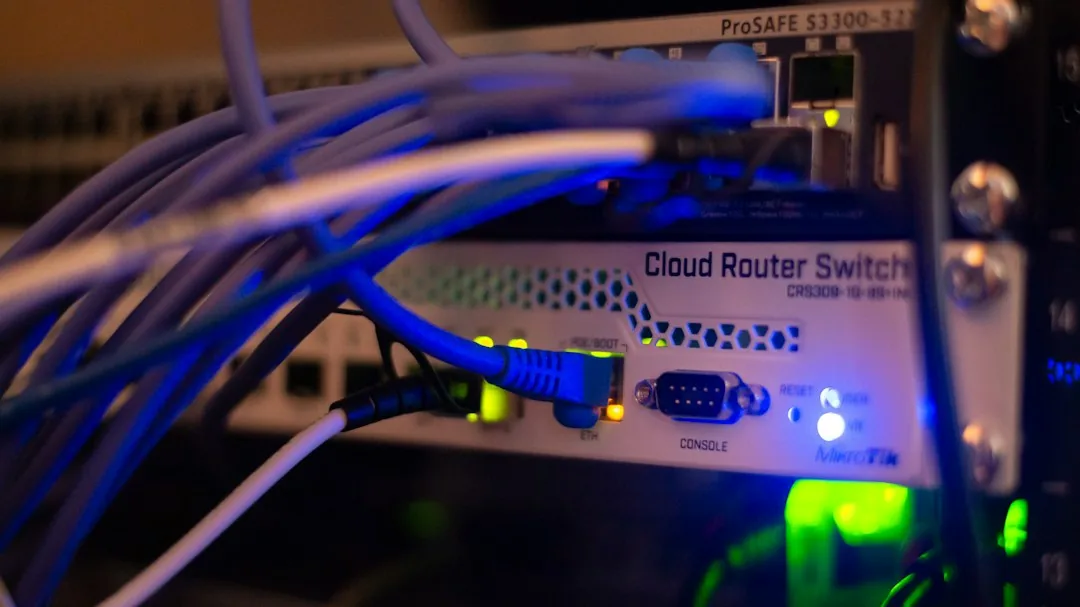
The simplest way to circumvent DNS blocking is switching from your ISP’s default resolver to a public alternative. When your internet provider blocks a domain through DNS filtering, that restriction exists only in their system. Point your device to a different DNS server, and the block disappears.
This method works exclusively against basic DNS-level filtering. If your ISP or government uses deeper inspection techniques (analyzing encrypted traffic patterns or blocking IP addresses directly), changing DNS servers won’t help. You’ll need a VPN or proxy for those scenarios.
Popular Public DNS Resolvers
Three providers dominate the public DNS space, each with different priorities.
Cloudflare (1.1.1.1 and 1.0.0.1) emphasizes speed and privacy. The company commits to deleting query logs within 24 hours and doesn’t sell user data to advertisers. Response times typically run 10-15 milliseconds.
Google Public DNS (8.8.8.8 and 8.8.4.4) offers reliable infrastructure with servers distributed globally. Google retains query data for roughly 24-48 hours for troubleshooting, then stores anonymized samples permanently. Performance matches Cloudflare in most regions.
Quad9 (9.9.9.9) adds a security layer, blocking access to domains hosting malware, phishing sites, and other threats. This filtering can occasionally create false positives, blocking legitimate sites that share infrastructure with malicious ones. Query logs are deleted after 24 hours.
How to Change DNS Settings
The configuration process varies by operating system but follows the same pattern: locate network settings, find DNS options, replace automatic settings with manual addresses.
On Windows 11, open Settings and go to Network & Internet. Click Properties under your active connection. Find DNS server assignment and click Edit. Select Manual, enable IPv4, and enter your chosen DNS addresses (primary and secondary). Click Save.
On macOS, open System Settings and select Network. Choose your active connection and click Details. Navigate to the DNS tab. Click the + button and add your preferred DNS servers. Click OK to apply changes.
On Android, open Settings and tap Network & Internet. Select Private DNS. Choose Private DNS provider hostname and enter the DNS server address (for Cloudflare, use 1dot1dot1dot1.cloudflare-dns.com). Tap Save.
On iOS, go to Settings and tap Wi-Fi. Tap the (i) icon next to your connected network. Scroll to DNS and tap Configure DNS. Select Manual, remove existing servers, and add your chosen addresses. Tap Save.
The change takes effect immediately. Test by visiting a previously blocked site. If it still doesn’t load, DNS blocking isn’t the issue.
Encrypted DNS: DoH and DoT Protection
When you type a website address into your browser, your device needs to translate that name into an IP address through a DNS query. Normally, this query travels in plain text, letting your ISP see every site you’re about to visit. DNS over HTTPS (DoH) and DNS over TLS (DoT) encrypt these queries, wrapping them in the same secure protocols used to protect passwords and credit card numbers.
As of 2026, roughly 28% of internet users globally have adopted DNS over HTTPS, according to Cloudflare’s adoption tracking. That’s a significant jump from 12% just three years earlier. The growth comes partly from browser makers building encrypted DNS directly into their software: Firefox, Chrome and Edge now route queries through DoH by default in many regions, without requiring any manual configuration.
How Encrypted DNS Works
DoT wraps DNS queries in a TLS encryption layer and sends them over port 853, creating a secure channel between your device and the DNS resolver. DoH takes a different approach, embedding encrypted DNS queries inside standard HTTPS traffic on port 443. To an outside observer, DoH queries look identical to regular web browsing, making them harder to identify and block.
Both protocols prevent your ISP from reading which domains you’re looking up. A government or network administrator can see that you’re making encrypted connections to a DNS resolver, but they can’t see the actual queries inside. This blocks the most common DNS filtering technique: intercepting queries and returning fake responses.
Setting Up DoH in Your Browser
Firefox enables DoH through Settings → Privacy & Security → Enable DNS over HTTPS. You can choose from Cloudflare, NextDNS or a custom resolver. Chrome and Edge offer similar settings under Privacy and Security, though the exact menu location varies by version.
The catch: encrypted DNS only protects the lookup phase. Once your browser has the IP address and starts connecting to the actual website, the Server Name Indication (SNI) field in the TLS handshake still reveals the domain name in plain text. An ISP monitoring your traffic can read that SNI field and block the connection anyway. Encrypted DNS stops DNS-based filtering but leaves other blocking methods intact.
Using VPNs to Bypass DNS Blocking
When a VPN is active, every DNS query leaves your device encrypted and emerges from a server in another jurisdiction. The resolver that answers your request sees the VPN server’s location, not yours, so local blocking rules never come into play. If your ISP redirects queries for a blocked domain to a warning page, the VPN tunnel bypasses that interception entirely because the query never touches your ISP’s infrastructure.
This differs fundamentally from switching to a public DNS resolver. Changing your DNS server to 1.1.1.1 or 8.8.8.8 only reroutes the name-lookup step. Your ISP still sees the domain names you’re requesting (via SNI in the TLS handshake) and can block the connection after DNS resolution succeeds. A VPN encrypts the entire path, so your ISP sees only the VPN server’s IP address and a stream of unreadable traffic.
Why VPNs Are More Effective Than DNS Changes Alone
VPNs solve multiple blocking layers at once. DNS-level blocks fail because queries happen elsewhere. IP-based blocks fail because your real IP is hidden. SNI-based filtering fails because the Server Name Indication field travels encrypted inside the tunnel. Deep packet inspection sees only the outer VPN protocol, not the websites you’re visiting. Roughly 45% of internet users in countries with heavy censorship use VPNs or DNS circumvention tools to access blocked content, according to a 2025 GlobalWebIndex report.
VPN Features That Matter for DNS Protection
Not all VPN clients handle DNS identically. Look for providers that run their own DNS resolvers on the VPN servers instead of forwarding queries to third parties. Leak protection features (sometimes called DNS binding or DNS firewall) block any query that tries to escape the tunnel and reach your ISP’s resolver. Split tunneling can undermine this: if you exclude certain apps from the VPN, their DNS queries may revert to your default resolver and trigger blocks. Check connection logs or use a leak test site immediately after connecting to confirm no queries are leaking outside the tunnel.
Smart DNS Services and Other Alternatives

Smart DNS services reroute only DNS queries, leaving your actual traffic unencrypted and flowing through your regular internet connection. This selective approach sacrifices the security envelope of a VPN in exchange for faster speeds and simpler setup, particularly for streaming geo-restricted content.
What Smart DNS Does Differently
When you configure Smart DNS on your device or router, the service intercepts DNS requests for specific domains (typically streaming platforms like Netflix, BBC iPlayer, or Hulu) and routes those queries through servers in the target region. Your IP address stays the same for most connections, but the DNS response makes the streaming service think you’re located wherever the Smart DNS server sits.
Because Smart DNS doesn’t encrypt your traffic or tunnel it through a VPN server, you avoid the bandwidth overhead and latency that encryption introduces. Streaming in 4K works without buffering on connections that might struggle with VPN throughput. Gaming latency stays close to your baseline ping since packets take their normal route.
The tradeoff is straightforward: your ISP, government and anyone monitoring your connection sees exactly what you’re doing. Smart DNS offers zero privacy protection beyond obscuring which geographic region you appear to be querying from. If your ISP blocks the streaming service by IP address instead of DNS, Smart DNS won’t help at all.
When to Choose Smart DNS Over a VPN
Smart DNS makes sense in narrow situations where speed matters more than privacy: streaming 4K content on bandwidth-limited connections, gaming while accessing region-locked servers or content, smart TVs and streaming devices that don’t support VPN apps, or multiple devices on a home network where configuring individual VPN clients becomes tedious.
If you’re dealing with government censorship, workplace filtering, or need to hide your activity from your ISP, Smart DNS solves the wrong problem. It bypasses DNS-level geo-restrictions, nothing more.
DNS Security Threats: Poisoning and Cache Attacks
Attackers don’t wait for governments or ISPs to block sites for them. DNS poisoning lets malicious actors inject false DNS records into resolvers, redirecting users to phishing sites, malware distribution servers, or fake login pages that harvest credentials. The victim types the correct domain name, but the poisoned DNS response sends their browser somewhere else entirely.
How DNS Poisoning Works
The attack exploits a weakness in how DNS resolvers trust responses. When a resolver queries an authoritative nameserver, it accepts the answer and caches it for a set period (the TTL, or time-to-live). An attacker who can intercept that query or spoof a response can insert fraudulent IP addresses into the cache. Anyone using that resolver afterward gets the poisoned record until the TTL expires.
Cache poisoning scales the damage. A single compromised resolver affects every user relying on it: an entire office network, a university campus, or an ISP’s customer base. In 2025, the IDC Research DNS Threat Report documented a 37% increase in DNS-based attacks and blocking incidents compared to the previous year, driven partly by easier exploitation of unpatched resolver software and the rise of DNS amplification tactics.
Protecting Against DNS Attacks
Suspicious behavior shows up as sudden redirects, certificate warnings when visiting familiar sites, or connections to unfamiliar IP addresses for known domains. Tools like nslookup or online DNS checkers let you verify whether a domain resolves to its legitimate IP. DNSSEC (DNS Security Extensions) adds cryptographic signatures to DNS records, letting resolvers verify that answers haven’t been tampered with. Not all domains support DNSSEC yet, and not all resolvers validate it, but adoption is growing: Cloudflare and Google Public DNS both validate DNSSEC by default.
Pick the Right Tool for Your Situation
DNS blocking is common, but it’s also one of the easiest censorship methods to bypass. If your ISP or government relies solely on DNS filtering, switching to a public resolver like Cloudflare (1.1.1.1) or Google (8.8.8.8) restores access in seconds. When your ISP monitors which domains you query, encrypted DNS (DoH or DoT) hides your lookups without slowing down your connection. For comprehensive protection against layered censorship that includes IP blocking, SNI filtering, or deep packet inspection, a VPN encrypts your entire connection and routes it through a server outside the restricted network.
No single method works universally. Countries with sophisticated censorship infrastructure combine multiple techniques, and what bypasses blocks in one location may fail in another. Test your situation: try changing DNS servers first, then add encrypted DNS if needed, and escalate to a VPN when simpler methods fail. Understand your threat model. If you’re avoiding workplace filters or basic ISP restrictions, DNS changes usually suffice. If you’re facing government surveillance or legal risk, a VPN with leak protection and strong encryption becomes necessary. Choose tools that match your actual requirements instead of defaulting to the most complex option.
Leave a Reply